RewritePal for Android
Install RewritePal on Android
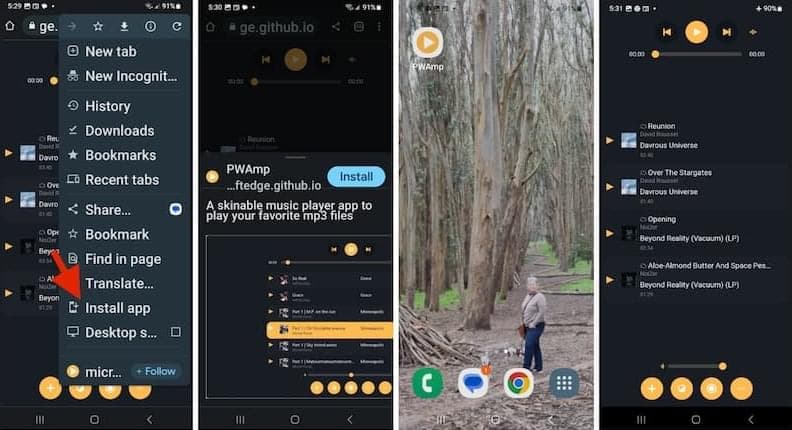
Chrome adds RewritePal to your Home Screen and app launcher. Other supported browsers may use different labels.
Some Android devices show Install app directly instead of Add to home screen. Both routes install the PWA.
Get started
- 1
Open rewritepal.com in Chrome
Tap the three-dot More menu at the top right.
- 2
Choose Add to home screen
Chrome may show Install app instead on some devices.
- 3
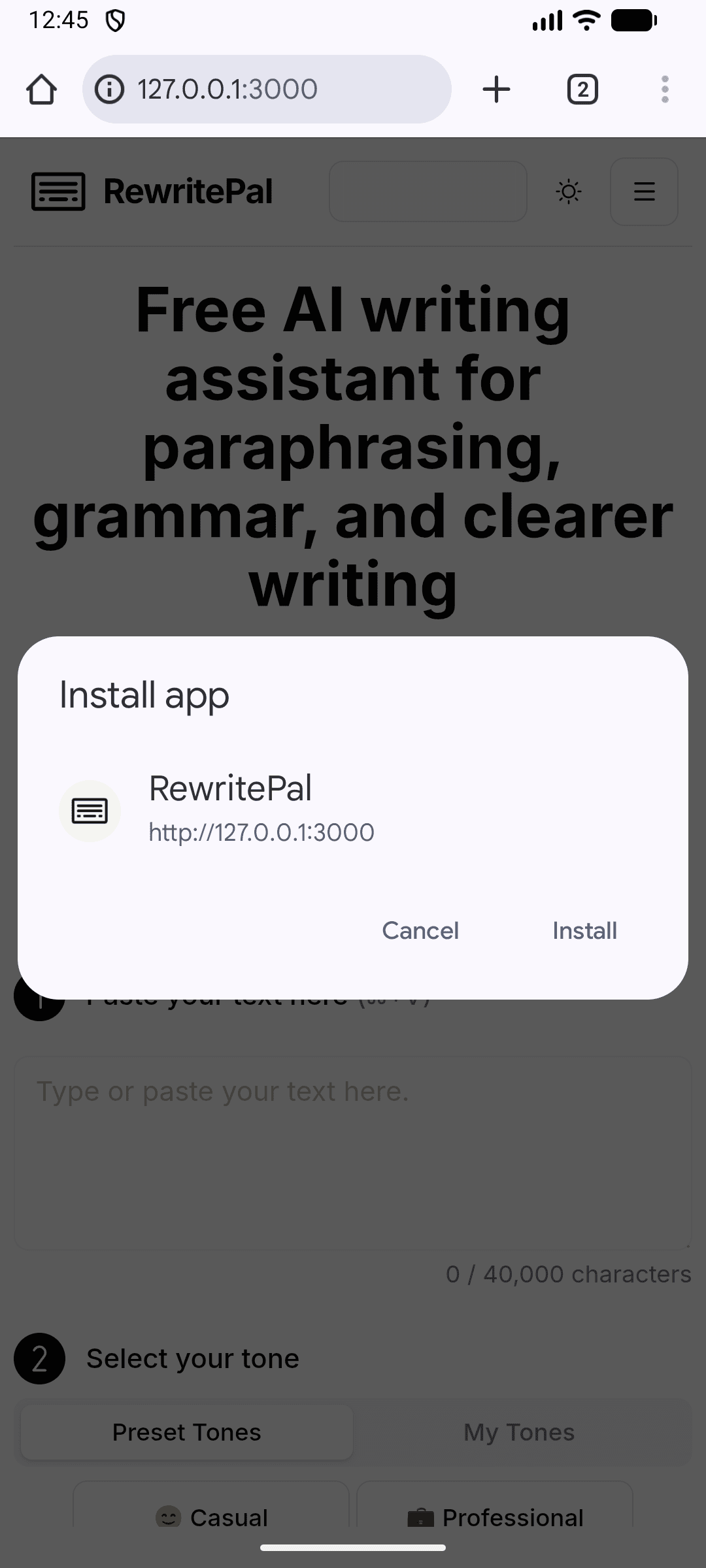
Tap Install
Confirm to add RewritePal to your Home Screen and app launcher.
Help with Android installation
Is this an Android keyboard?
This installs the RewritePal web app. Open its icon to rewrite text, check grammar, or edit a document. It does not replace your Android keyboard.
Chrome shows Add to home screen instead of Install. Is that right?
The wording varies by device and browser version. Open Chrome’s menu, select Add to home screen, then choose Install if offered. Confirm the prompt to add RewritePal.
The install prompt disappeared. How can I install later?
Return to rewritepal.com in Chrome and open the three-dot menu. Choose Add to home screen or Install app. If installation is unavailable on your device, you can still use RewritePal in that browser tab.