RewritePal for Desktop
Install RewritePal on Windows, Linux & ChromeOS
On Windows, macOS, Linux, or ChromeOS, a supported Chromium browser can open RewritePal in its own app window.
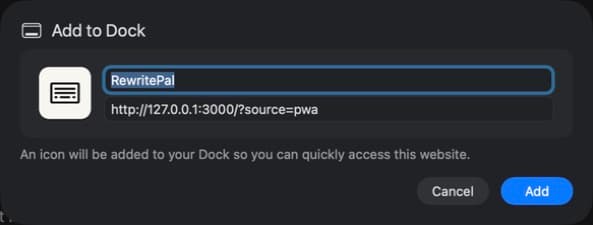
Firefox 143 or later on Windows uses the address-bar web apps button. Microsoft Store installs require Firefox 150 or later. On macOS 14 or later, Safari users can choose File, then Add to Dock.
Get started
- 1
Open rewritepal.com
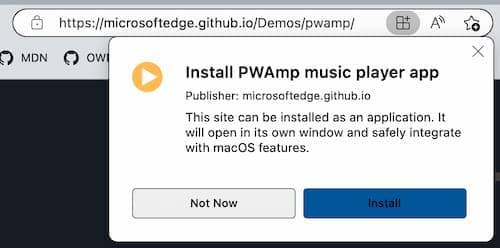
Use Chrome or Edge and look for the install icon in the address bar.
- 2
Open the browser menu if needed
In Chrome, choose Cast, save and share. In Edge, open Apps.
- 3
Choose the install option
Select Install page as app in Chrome or Install this site as an app in Edge.
For suggestions while writing on websites, get the Chrome extension.
Help with Desktop installation
Does this install a Windows desktop assistant?
This installs the RewritePal web app in its own window. Open that window to rewrite text, check grammar, or use the document editor. For writing suggestions inside websites, use the RewritePal Chrome extension.
The install option is missing. What should I do?
Open rewritepal.com in a regular Chrome or Edge window and wait for the page to finish loading. Check the browser menu for the installation option. If your work or school manages the browser, installation may be restricted. You can keep using RewritePal in a browser tab.
Where will the installed app appear?
Your browser adds an app shortcut to your computer. Search for RewritePal in your app launcher or Start menu. You can pin that shortcut for quicker access.